
Bosch HomeCom Easy App
Climate control and hot water at a glance, through your mobile
Distributor in Malta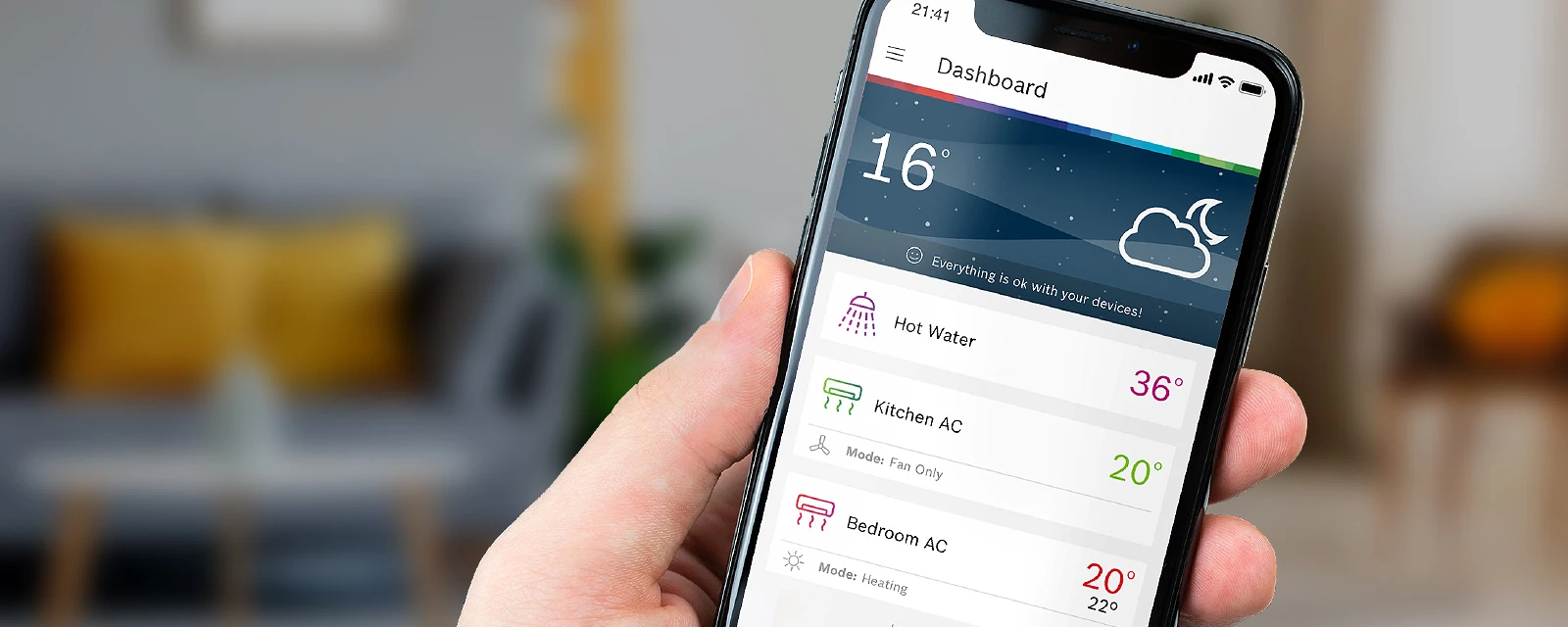
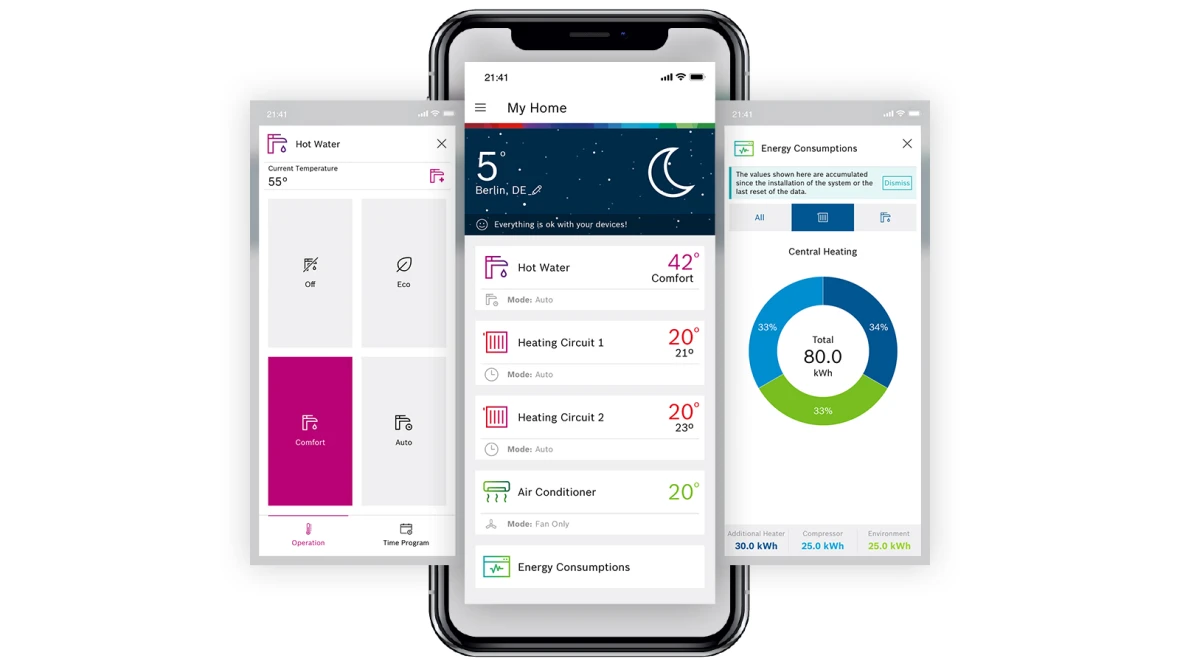
All your devices in one app
Simple and intuitive use
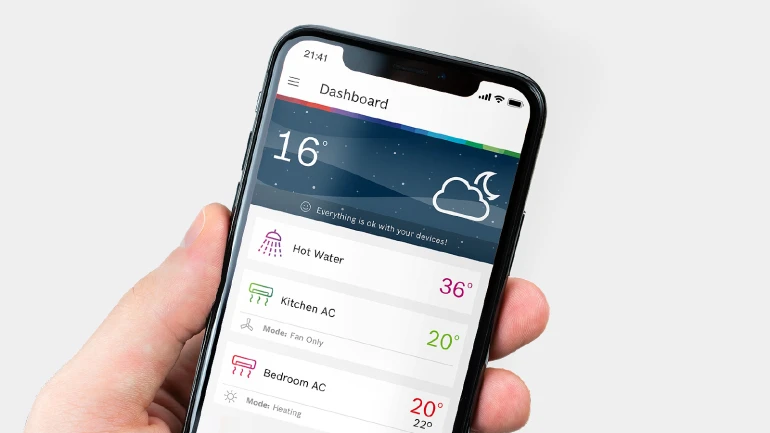
With HomeCom Easy App you can control your heating appliances and your air conditioners from your mobile! Climate control has never been so easy!
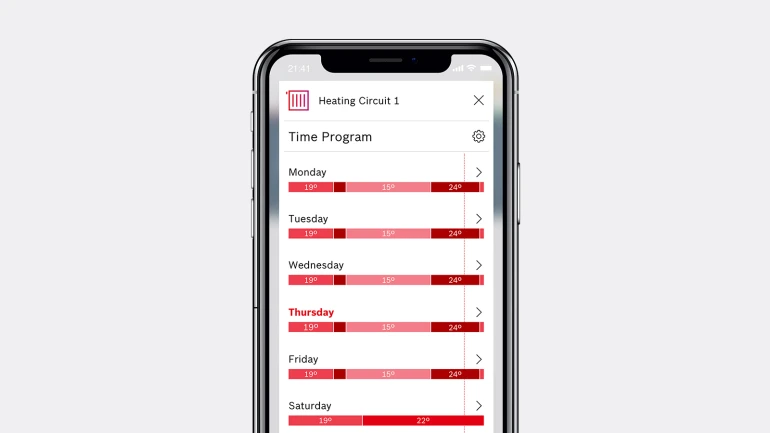
Time Program – heating and hot water to suit your everyday needs
This is where you can specify when rooms should be heated to what temperature every day.
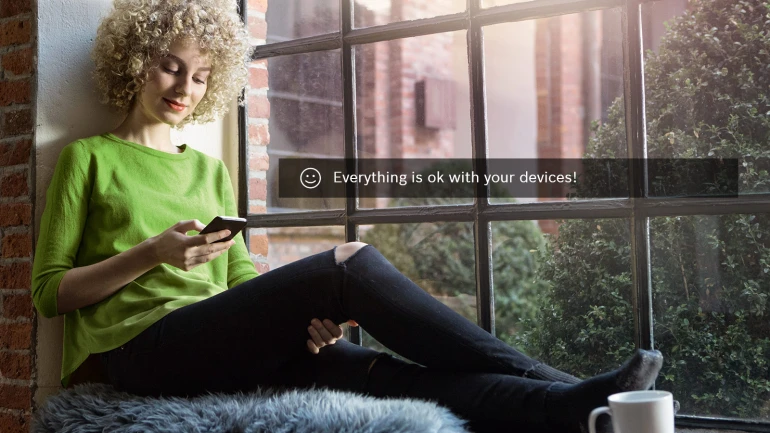
Notifications – always stay up to date with the status display
This is where possible solutions are displayed in case of a fault.
Bosch HomeCom Easy
Download the HomeCom Easy app today from the Apple Store or the Google Play Store
Bosch appliances you can control with Bosch HomeCom Easy App.
FAQ
Answers to the most frequently asked questions
Βρέθηκε αποτέλεσμα για ""
ηκαν αποτελέσματα για ""
Where can i download the app
Where can i download the app
The app is available from the App Store and the Google Play Store.
Which mobile operation systems are supported
Which mobile operation systems are supported
We support iOS11 or newer systems and Android 6.0 or newer systems.
Can i also use the app on a tablet?
Can i also use the app on a tablet?
The app is optimised for use on a smartphone but it can be installed on a tablet as well.
Why do i need to login and create a Bosch account?
Why do i need to login and create a Bosch account?
We need to know that you are authorised to control your device in order to protect you. User accounts ensure that only authorised users can access and control your devices.
Can other member of my family access the same system?
Can other member of my family access the same system?
Of course. Anyone who wants to access the system needs to download the app, create a Bosch account and add the devices to the app.
What happens to my personal data
What happens to my personal data
We only process the information we actually require in order to enable you to access your devices remotely. For more information, refer to “Information” in the app or go online to read our Privacy Policy .
I just moved in. How can I stop former tenants from accessing my gateway?
I just moved in. How can I stop former tenants from accessing my gateway?
Your only option is to reset to factory settings. When you reset to factory settings, all information saved in the gateway is deleted and all users connected to a gateway are removed. To do this, select “Devices” -> Select a device -> Click on “Reset to factory settings” and follow the instructions in the app.
Which products are compatible with the App
Which products are compatible with the App
You can find all compatible products on this website .
Where can I find the QR code?
Where can I find the QR code?
The QR code is either on the device or the accessories. You can find more information in the manual you received with your device.
Can I use WPS to connect my product with my WiFi router ?
Can I use WPS to connect my product with my WiFi router ?
We support WPS for our Wi-Fi products.
What does WPS mean and how do I know if my router supports WPS?
What does WPS mean and how do I know if my router supports WPS?
WPS stands for Wi-Fi Protected Setup. We support pressing the WPS button, which means that your router should have an additional button that is called WPS or marked with a similar symbol: If this is not the case, please check the manual for your router.
Aside from WPS is there another way to connect my device to my home network?
Aside from WPS is there another way to connect my device to my home network?
It is possible to connect the device in hotspot mode (AP mode). Simply select “Manual (hotspot)” in the app during the Wi-Fi pairing process.
How can I add more than one device?
How can I add more than one device?
Open the ≡ menu, select the devices and then click on the + button. Select the product you want to connect (keep in mind that you can switch between several compatible devices).
How can I delete devices from my account?
How can I delete devices from my account?
If you want to remove a device from your user account, go to the ≡ menu, select “Devices” and choose the device you want to remove. Then click on the “Remove” button. Please note that removing a device from your account does not remove any network configurations from the device itself. To do that, you need to reset the device itself. You can find information about this in the manual for the device.
Where is the Matter QR-Code or Setup Code?
Where is the Matter QR-Code or Setup Code?
The commissioning window for Matter is only open for 15 minutes after powering the device. To reopen the Matter commissioning window, turn on the device using the on/off button of your infrared control. You can then find the Matter QR code or Setup code for your air conditioner in the device list of your appliances.
How can I change the App language?
How can I change the App language?
You can change the preferred language in the settings for the app in your smartphone settings.
Can I adjust the main screen?
Can I adjust the main screen?
Yes, you can adjust your main screen. Go to the ≡ menu and select “Personalise”. You can change the order in which the tiles are displayed on the main screen by dragging and dropping them. You can change the name of a tile by selecting the pen symbol. You can also show or hide a tile by switching the eye symbol over. You can't hide a tile if you have only one.
How can I update the data on the main screen?
How can I update the data on the main screen?
Drag the centre of the display down with your finger to update the data.
How can I change the location displayed in the weather forecast?
How can I change the location displayed in the weather forecast?
You can select the pen symbol in the weather area to change the location. Click on the pin to use your current location (the app needs permission to access your location for this). Alternatively, you can search for and select a location using the text box.
Where does the outdoor temperature come from?
Where does the outdoor temperature come from?
The outside temperature is provided by OpenWeatherMap.org for your set location.
I am suddenly seeing changes that I did not make
I am suddenly seeing changes that I did not make
This can happen if a different user changes a setting (either via their own app or on the device itself).
I have a new router. How do I connect my device to the new router?
I have a new router. How do I connect my device to the new router?
Disconnect the old router by switching it off or disconnecting it from the power supply. Once you have switched off the router, you can start a new Wi-Fi pairing process to connect the new router. In order to start the Wi-Fi pairing process, go to “Devices”, click on “Add device” and follow the steps in the app.
My wi-fi at home is not working. Can I still control my devices?
My wi-fi at home is not working. Can I still control my devices?
You can still control your heating from your room thermostats or the display on the heating system itself.
For air-conditioning units, you can use the infrared room control unit.
We had a power cut. Does this affect anything?
We had a power cut. Does this affect anything?
No, the most recent settings will be restored. Make sure that your router is supplied with power again and is connected to the Internet to control your devices from the app.
Which Wi-Fi router do I need?
Which Wi-Fi router do I need?
The following specifications are required in order to work with the Connect-Key:
- WPA2 (also mixed WPA/ WPA2) network with AES or TKIP&AES encryption
- DHCP enabled
- SSID must be discoverable (not hidden)
- 2.4 GHz network, normally 5 GHz routers also support 2.4 GHz in parallel
- Δίκτυο WPA2 (επίσης μικτό WPA/WPA2) με κρυπτογράφηση AES ή TKIP & AES.
- Ενεργοποιημένο DHCP.
- Το SSID πρέπει να είναι ανιχνεύσιμο (όχι κρυμμένο).
- Δίκτυο 2,4 GHz, συνήθως οι δρομολογητές 5 GHz υποστηρίζουν επίσης στα 2,4 GHz1w.
Which WiFi connection do I need for air conditioners?
Which WiFi connection do I need for air conditioners?
Our connection normally works with the standard wifi settings of commercially available routers. In some cases, some settings may need to be changed manually. Check the specifications in your router's manual and make the necessary configuration changes if necessary (your router's manual should indicate how to do this).
The following specifications are required to work with our connectivity:
- 2.4 GHz network;
- WPA2 (also mixed WPA/ WPA2) network with AES or TKIP & AES encryption (open networks are not supported);
- DHCP activated;
- SSID must be discoverable (not hidden);
- The use of proxies and VPN is not recommended;
- Network modes IEEE 802.11 b/g/n or 802.11 b/g
- Network channels from channel 1-11
- Ports 8883 and 443 must be open
- Although our connectivity only works with the 2.4 GHz band, 5 GHz routers usually also support 2.4 GHz in parallel.
If you have a dual band router, make sure that:
the 2.4 GHz band is active;
the two networks have different names;
When connecting to the device, make sure that the 2.4 GHz network is selected.
There is a display in the Weather area indicating that there is something wrong with my device. What shouldI do?
There is a display in the Weather area indicating that there is something wrong with my device. What shouldI do?
Click on the message or on “Notifications” in the menu to display the fault message. The message will also contain a notice on possible solutions.
One or multiple cards have disappeared from my home screen, what can I do?
One or multiple cards have disappeared from my home screen, what can I do?
Please check in the device settings if your device is still paired and online. If it is offline but available please check your internet connection, if it disappeared, please perform the pairing again by clicking "add device". If pairing is failing again, then contact your service partner (see contacts in Bosch HomeCom App) for professional assistance.
I can't see light on the ConnectKey. What can I do?
I can't see light on the ConnectKey. What can I do?
Check whether the Connect Key is in energy saving mode by touching the LED on the short edge. If this does not work, make sure that the Connect Key is correctly installed in your device and supplied with power. The start-up process may take up to one minute.
I can't receive the latest updates that were published on the webiste.
I can't receive the latest updates that were published on the webiste.
Check the latest version of your gateway firmware in the expanded information. If the functions do not update, this may be due to a weak Wi-Fi signal. Please try to improve the signal by using a repeater.
Where is the QR code located?
Where is the QR code located?
The QR code is on a sticker in the package of the gateway and you are told to stick it to the side of the appliance during commissioning, actually after installation and before pairing.
What can I do when the appliance is unreachable?
What can I do when the appliance is unreachable?
Climate Class 8000i
In order to check the connection status, you need to have a look at the LED on the indoor unit.
In case the LED is constantly green, the connection is set up properly, the system only requires a few minutes to react.
In case the LED is off, the connection is lost. Possible solutions to re-establish the connection is to power off the appliance and power on again or to check the internet connection of the router.
Climate Series (Climate 3000i, Climate 5000i, Climate 6000i)
In order to check the connection status, you need to have a look at the display on the indoor unit.
In case the WIFI symbol is shown, the connection is set up properly, the system only requires a few minutes to react.
In case no WIFI symbol is shown, the connection is lost. Possible solutions to re-establish the connection, first power off the appliance and power on again, if the connection is still not resumed then check the internet connection of the router.
My Wi-Fi at home is not working. How can I turn on my air conditioner?
My Wi-Fi at home is not working. How can I turn on my air conditioner?
You can use the infrared room controller.
I cannot change the setpoint temperature.
I cannot change the setpoint temperature.
Climate Class Class 8000i
You cannot change the setpoint temperature if the infrared controller was set to Auto, Dry, Ventilation only or Full Power. You need to change it to Heating or Cooling mode in order to be able to change the setpoint temperature.
Climate Series (Climate 3000i, Climate 5000i, Climate 6000i)
You cannot change the setpoint temperature if the infrared controller was set to Ventilation only, Full Power or 8 C degree heating. You need to change it to Heating, Cooling, Auto or dry mode in order to be able to change the setpoint temperature.
I cannot change the fan speed.
I cannot change the fan speed.
Climate Class Class 8000i
You cannot change the fan speed if the infrared controller was set to Dry, Full Power and Multi Space. You need to change it to Heating, Cooling or Fan only mode in order to be able to change the fan speed.
Climate Series (Climate 3000i, Climate 5000i, Climate 6000i)
You cannot change the fan speed if the infrared controller was set to Auto, Dry, Full Power or 8 C degree heating. You need to change it to Heating, Cooling or Fan only mode in order to be able to change the fan speed.
I suddenly see changes I did not do.
I suddenly see changes I did not do.
This might happen if a second user does settings (by a second App or by infrared controller) while your App is already open.
Some of the functions available on the infrared room controller are not visible on the app.
Some of the functions available on the infrared room controller are not visible on the app.
Some of the advanced functions are not supported by the app at the moment, you can use your infrared room controller.
My appliance does not work any more. I cannot control it via infrared room controller or app.
My appliance does not work any more. I cannot control it via infrared room controller or app.
Climate Class Class 8000i
Check for the LED status in the indoor unit. If this is orange blinking, there is an error in the system.
If the LED is off, then power off the appliance and power on again.
Climate Series (Climate 3000i, Climate 5000i, Climate 6000i)
Check for the display status on the indoor unit. If the error code is shown then there is an error in the system.
If the error code is not shown, wait for 10 minutes until the error code is shown. If the error code doesn't appear, then power off the appliance and power on again.
How can I be sure no other users can control my air conditioning via App?
How can I be sure no other users can control my air conditioning via App?
If you do a factory reset all users will be removed. You then have to repeat the pairing process.
Why is my gateway disconnecting frequently?
Why is my gateway disconnecting frequently?
If you have a standard dual-band router which supports 2.4 GHz and 5 GHz, we recommend to split SSID names of 2.4 Ghz AND 5 Ghz networks by giving unique SSID (network name).
If you are using mesh network at your home, please ensure that the gateway is white-listed in your router. Please refer to the white-listing (MAC filtering) in the router manual.
Why some of my appliances are not working?
Why some of my appliances are not working?
In case of multi-split systems, please ensure that all the indoor units are running in the same mode. The multi-split systems have heating operation as priority operation mode so if one unit is set to heating and the second to cooling, the second one goes to mode conflict.
Can I deactivate software updates?
Can I deactivate software updates?
You can deactivate the software updates for the app in the relevant App Store. However, we recommend that you do not do this so that you will continue to receive security and functional updates.
The software updates for your devices can't be deactivated as updates are required to rectify faults and for reasons of safety.
Where can I find the license information for the Connect Key?
Where can I find the license information for the Connect Key?
While pairing in hotspot mode, you can access the licence information via the ---- symbol. If you have already connected your system, you need to delete the Wi-Fi connection and select hotspot mode for pairing when connecting your Connect Key again.
Which new features are provided in Connect-Key version 04.02.03?
Which new features are provided in Connect-Key version 04.02.03?
New system support:
- Compatibility to Compress 3400i AWS
- Compatibility to Compress 7001i AW, Compress 7400i AW and Compress 6000 AW
- Provision of release notes for Connect-Key
- Extensions for Bosch Energy Manager
- Extensions in monitoring (e.g. current return temperature)
- Improvements for energy monitoring data
- Upgrade of Connect-Key operating system
Which new features are provided in Connect-Key version 05.02.01?
Which new features are provided in Connect-Key version 05.02.01?
New system support:
- Compatibility to GC2300i W, GC4300/4700i W, GC4300/4700i W Dos, GC5300/5700i W, GC7300/7700i W, GC8300/8700i W, GC5300i WM, GC5300/5700i WT, GC4000 F in combination with CW400",
- Compatibility to GC8000i F, OC8000i F, GC7000F, GC9000i WM in combination with CW400
New features:
- Extension of monitoring data for solar systems
- Extensions for Bosch Energy Manager
- Extensions in energy monitoring (e.g. electrical consumption)
- Improved resolution for historic energy monitoring data
- Extensions of heat curve settings for HomeCom Pro
Which new features are provided in Connect-Key version 06.02.04?
Which new features are provided in Connect-Key version 06.02.04?
New system support:
- Compatibility to Compress 5800i AW and Compress 6800i AW including monitoring and control of a system integrated ventilation unit
- Monitoring and control of systems including a fresh water station
New features:
- Extensions for Bosch Energy Manager
- Extensions in energy monitoring (e.g. higher resolution values for some systems)
- Extensions in system identification for webportal HomeCom Pro
- Extensions of monitoring values for webportal HomeCom Pro
- Additional control parameters for webportal HomeCom Pro
Performance and stability:
- Improvements in communication
- Improvements in Wi-Fi pairing procedure