
Bosch HomeCom Easy App
Manage your Bosch Hot Water and Heating appliances remotely with ease!
Open Source License Information (Gateway)Bosch will provide security updates for this app until 31 December 2031.
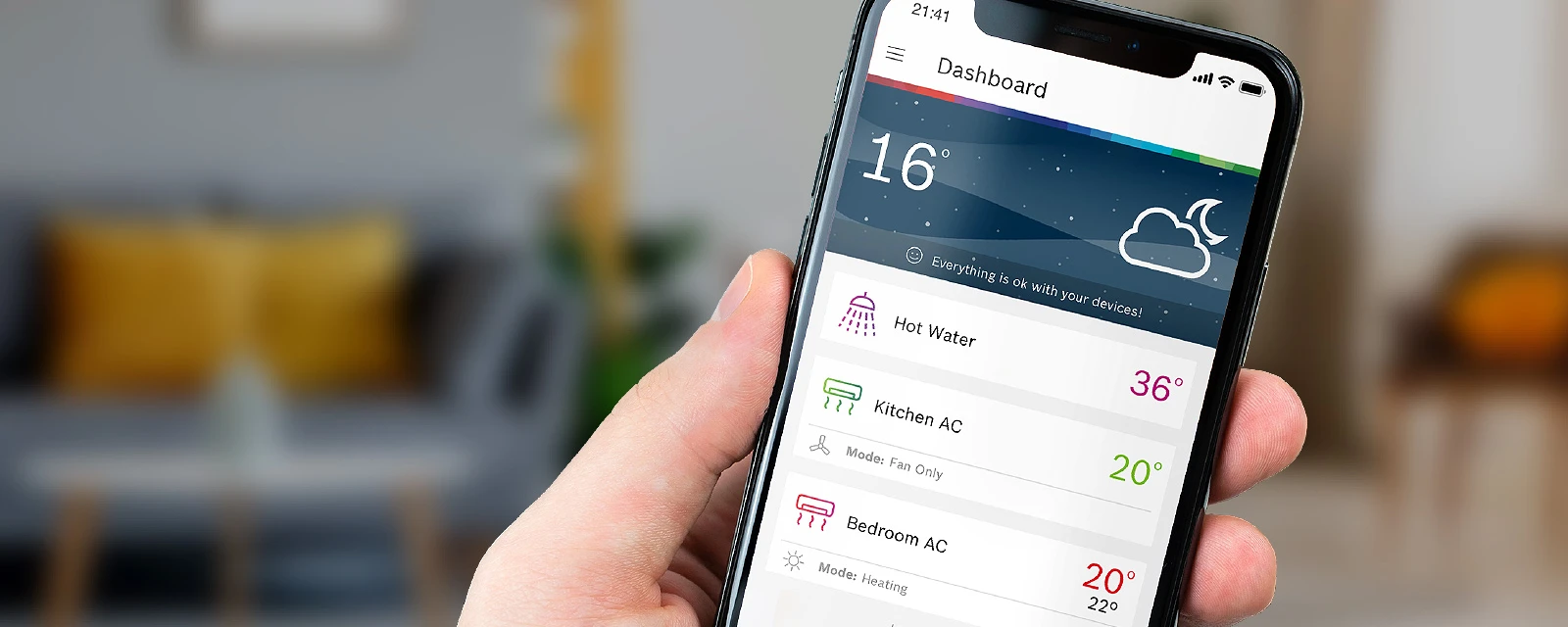
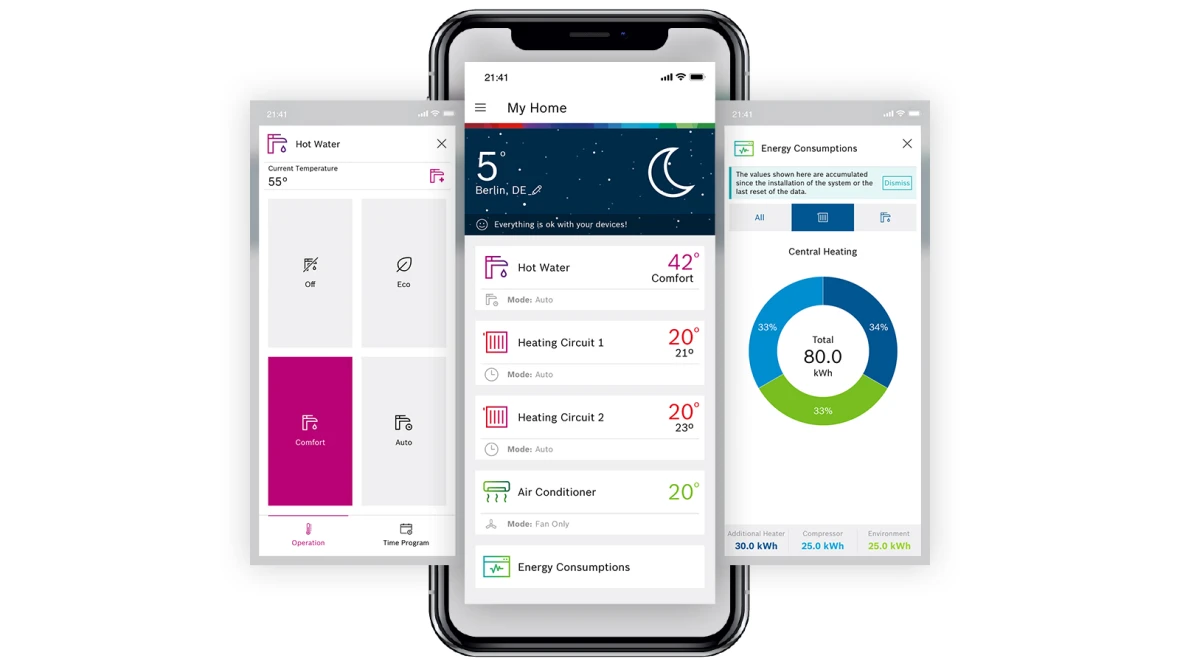
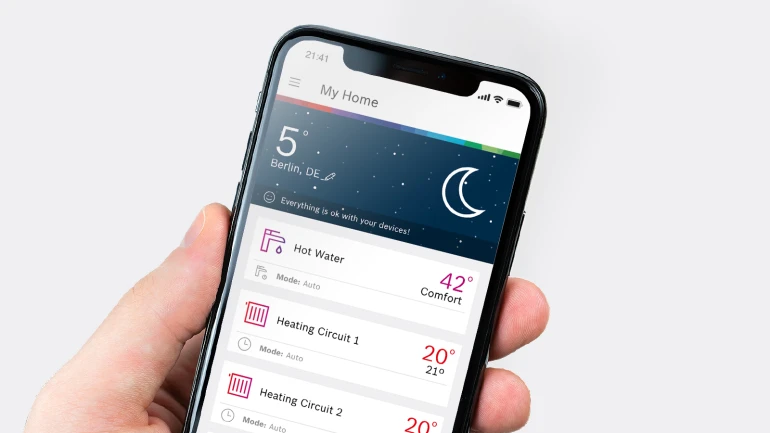
Simple and intuitive management, even from a distance
With the HomeCom Easy App for Bosch 3-Phase Electric Instantaneous Water Heater, it has never been easier to control the climate in your home!
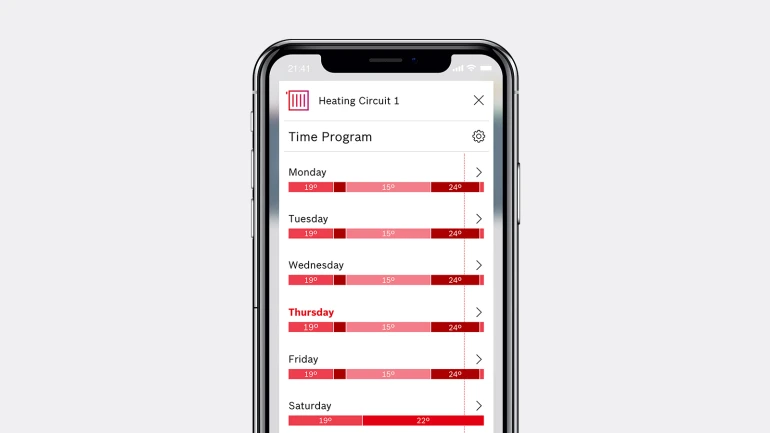
Maximum comfort at any time
Set your preferred mode or select a time program for maximum comfort at any time.
Everything at a glance
With the app, you can view the status of your Bosch products at any time and receive notifications with possible solutions in the event of anomalies.
Bosch HomeCom Easy app
Get HomeCom Easy App now! Available on the Google Play Store and App Store. It is time to get the most out of your devices.
Bosch HomeCom Easy App FAQ
Manage your Bosch heating products remotely with ease.
result found for ""
results found for ""
Where can I download the app?
Where can I download the app?
The app is available on the App Store and Google Play Store.
Which mobile operating systems are supported?
Which mobile operating systems are supported?
The app supports iOS 11 or newer and Android 6.0 or newer systems.
Can I use the app on a tablet?
Can I use the app on a tablet?
The app is optimised for smartphones but can also be installed on tablets.
Why do I need to log in and create a Bosch account?
Why do I need to log in and create a Bosch account?
This ensures only authorised users can access and control your devices, providing security and protection.
Can other family members access the same system?
Can other family members access the same system?
Yes, they need to download the app, create a Bosch account, and add the devices to their app.
What happens to my personal data?
What happens to my personal data?
We only process essential information to enable remote access to your devices. For more details, refer to the “Information” section in the app or our online Privacy Policy.
I’ve just moved in. How can I stop former tenants from accessing my gateway?
I’ve just moved in. How can I stop former tenants from accessing my gateway?
Select 'Devices,' choose a device, click 'Reset to factory settings,' and follow the app instructions. This will delete all saved information and remove all connected users.
Which products are compatible with the app?
Which products are compatible with the app?
You may find all compatible products on the HomeCom Easy page.
I can't find my device in the selection.
I can't find my device in the selection.
Ensure your device is compatible. For details, refer to the supported products section.
Where can I find the QR code?
Where can I find the QR code?
The QR code is located on the device or its accessories. Check your device manual for specifics.
What if I can’t scan the QR code?
What if I can’t scan the QR code?
You may manually enter the credentials from the Wi-Fi dongle label: gateway ID (User ID), password, and MAC address.
Can I use WPS to connect my device to the Wi-Fi?
Can I use WPS to connect my device to the Wi-Fi?
Yes, we support WPS for products such as Tronic 7000 and Tronic 8500i.
What does WPS mean, and how can I check if my router supports it?
What does WPS mean, and how can I check if my router supports it?
WPS stands for Wi-Fi Protected Setup. Check your router for a WPS button or symbol, or refer to its manual.
Aside from WPS, is there another way to connect my device to my home network?
Aside from WPS, is there another way to connect my device to my home network?
Yes, you can use hotspot mode (AP mode). Select "Manual (hotspot)" in the app during the Wi-Fi pairing process.
How can I add more than one device?
How can I add more than one device?
Open the ≡ menu, select “Devices,” and click the + button. Choose the product you want to connect and follow the app instructions. (keep in mind that you can switch between several compatible devices).
How can I delete devices from my account?
How can I delete devices from my account?
Go to the ≡ menu, select “Devices,” choose the device, and click “Remove.” Note that this only removes the device from your account. To reset the device itself, follow the instructions in your device manual.
How do I check what is designation of my appliance?
How do I check what is designation of my appliance?
The designation can be found on the instruction manual or the data plate—a metallic sticker on the appliance cover.
I cannot connect my appliance with the app
I cannot connect my appliance with the app
Ensure that your Wi-Fi connection meets the minimum requirements - see question "What Wi-Fi connection do I need?"
1. Confirm that your smartphone has a strong connection to the Wi-Fi network where the appliance is installed
2. Confirm that the Wi-Fi dongle is correctly installed.
How can I change the app’s language?
How can I change the app’s language?
Update the language in your smartphone settings.
Can I customise the main screen?
Can I customise the main screen?
Yes, by selecting "Personalise" in the ≡ menu. You may:
- Drag and drop tiles to reorder them.
- Rename tiles using the pen icon.
- Show or hide tiles using the eye icon (you can’t hide a tile if there’s only one).
How do I update the main screen data?
How do I update the main screen data?
Drag centre of the display downwards to refresh the data.
How do I change the location displayed in the weather forecast?
How do I change the location displayed in the weather forecast?
Select the pen icon in the weather area to update the location. Alternatively, manually search for a location using the text box.
Where does the outside temperature come from?
Where does the outside temperature come from?
The outside temperature is provided by OpenWeatherMap.org for your set location.
What if I notice changes I didn’t make?
What if I notice changes I didn’t make?
This may happen if another user adjusts the settings via their app or the device itself.
What Wi-Fi connection do I need?
What Wi-Fi connection do I need?
Our connectivity normally works with the standard Wi-Fi settings of commercially available routers. In some cases, some settings might need to be changed manually. Check the specifications in the instruction manual of your router and, if required, perform the required configuration changes (the instruction manual of your router should indicate how to do it).
The following specifications are required in order to work with the our connectivity:
- 2.4 GHz network with WPA2 (also mixed WPA/ WPA2) network with AES or TKIP&AES encryption (open networks are not supported)
- DHCP enabled and SSID discoverable (not hidden)
- Avoid using proxies or VPN.
- Network modes IEEE 802.11 b/g/n or 802.11 b/g.
Although our connectivity only works with 2.4GHz band, normally 5GHz routers also support 2.4GHz in parallel.If you have a dual band router, ensure that:
- the 2.4GHz band is active
- the two networks have different names; When connecting to the appliance, ensure that the 2.4GHz network is selected.
Note: if your Wi-fI network is not compatible with our connectivity, it will not appear during pairing.
I have a new router. How do I connect my device to the new router?
I have a new router. How do I connect my device to the new router?
Disconnect the old router, then start a new Wi-Fi pairing process via the app.
Tronic Series: Disconnect the old router by switching it off or disconnecting it from the power supply. Once you have switched off the router, you can start a new Wi-Fi pairing process to connect the new router. In order to start the Wi-Fi pairing process, go to “Devices”, click on “Add device” and follow the steps in the app.
My Wi-Fi isn’t working. Can I still control my devices?
My Wi-Fi isn’t working. Can I still control my devices?
Yes, you may control devices via thermostats, infrared room controls, or the heating system display.
What happens after a power cut?
What happens after a power cut?
Devices will restore their most recent settings. Ensure your router is powered and connected.
There is a fault message on my app. What should I do?
There is a fault message on my app. What should I do?
Check “Notifications” for fault details and possible solutions.
One or multiple cards disappeared from my home screen, what can I do?
One or multiple cards disappeared from my home screen, what can I do?
Ensure the device is still paired and online.If it is offline but available please check your internet connection, if it disappeared, please perform the pairing again by clicking "add device". If pairing is failing again, then contact your service partner (See contacts in the Bosch HomeCom App) for professional assistance.
I can’t receive the latest functions published on the website.
I can’t receive the latest functions published on the website.
Ensure your latest version of your gateway firmware is up to date. Weak Wi-Fi signals may cause delays; try improving the signal with a repeater.
Can I deactivate software updates?
Can I deactivate software updates?
App updates can be disabled in the App Store, but we recommend keeping them enabled for security reasons. Device updates cannot be deactivated.
I cannot find the Wi-Fi pairing button of tronic appliances (Tronic 7000, 8501i)
I cannot find the Wi-Fi pairing button of tronic appliances (Tronic 7000, 8501i)
The Wi-Fi pairing button is located below the small lid with the Wi-Fi symbol in the front cover (Please follow the steps described in the instruction manual, to open the lid and install the Wi-Fi dongle). After the Wi-Fi dongle has been installed, the pairing button can be found on the bottom right corner of the opening. The button has a grey colour (same colour as the plastic electronic module cover), and a texture with vertical stripes.
Is it safe to open the Wi-Fi lid and press the Wi-Fi pairing button in tronic appliances?
Is it safe to open the Wi-Fi lid and press the Wi-Fi pairing button in tronic appliances?
Yes, as the parts near the Wi-Fi button are supplied with SELV (Safety Extra-Low Voltage), eliminating the risk of electric shock.
How do i reset the wi-fi dongle to factory settings?
How do i reset the wi-fi dongle to factory settings?
You may reset it via the app or directly at the appliance by pressing the pairing button for 8 seconds.
Factory reset through the HomeCom Easy App:
You may initiate the factory reset process through the HomeCom Easy App. For this, go to "Devices" section, select the device you want to reset and follow the steps on your screen.
- Factory reset through the Water Heater:If your appliance is not connected to the HomeCom Easy App, the Wi-Fi dongle reset operation must be done directly at the water heater.
TR8500i:
- For these models, the Wi-Fi dongle reset is performed via the Wi-Fi pairing button, located inside the Wi-Fi dongle compartment.
Hint: if you have trouble finding the location of the Wi-Fi pairing button, see the question I cannot find the Wi-Fi pairing Button of Tronic appliances (Tronic 8500i).
For the reset operation:
1. Remove the front panel of the appliance
2. Remove the Wi-Fi cover using a suitable tool
3. Press the Wi-Fi pairing button and keep it pressed
The LED turns on, indicating the beginning of the restarting sequence.4. After the LED turns off (approximately 8 seconds), release the button.The Wi-Fi dongle has been reset.
Open Source License Information (Gateway)